Instructions for adding your signature to Outlook PC (Windows)
Note: Different versions of Outlook may have slightly different menu options. If in doubt, please speak to your IT department to guide you through.
If you haven't done so already, add your details in the Signature Creator and click Download.
A file called 'your_company.htm' will be downloaded to your computers 'download folder'.
You will also see this on the bottom of your browser window (your file name will be different. my_company_signature.htm is an example filename)

Open your 'Downloads' folder
If you're not sure where your download folder is:
Click the 'Start' menu bottom right of your computer and in the 'search' box type 'Downloads' and press Enter' on your keyboard

You will now see the below window which is your Downloads folder.
Right click the file 'my_company_signature.htm' and select 'copy'. Nothing will happen when you do this but don't worry.

- Open Outlook and on the menu bar click 'Tools > Options'. If you are using the latest version of Outlook you will not have a Tools button, if so, click File > Options.
A dialogue box will appear which will look like the image below 'Outlook Options'.

- Click the 'Mail' tab on the left
- Press the CTRL key on your keyboard and click the 'Signatures...' button.
A new folder will open. - Right click anywhere in the window (in the white space, not over a file) and 'paste'. The file 'your_company.htm' will show in there
- Close that new window so you can see the 'Outlook Options' window above.
- Click the 'Signatures...' button again (you don't need to press the CTRL key this time)
- You will now see the below window. Don't worry if your signature preview doesn't look complete or looks truncated. It's totally fine.
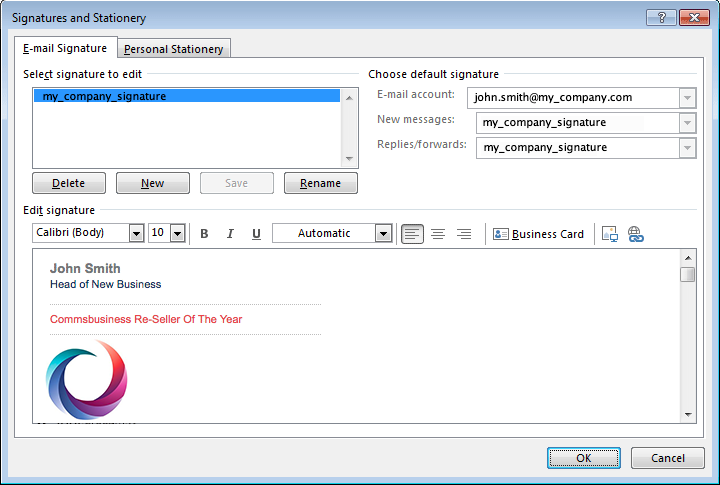
All you need to do now is: - Make sure the drop down 'E-mail account' is your email account
- In the 'New Messages' dropdown select 'my_hc_signature'
- If you want the signature to show in your replies/forwards, select 'my_company' from the dropdown.
- Click 'ok' to close this window and you're done !
Now everytime you create a new email the new signature you created will appear.